Showing posts with label apps. Show all posts

Friday, July 29, 2016

Star Toaster(App review of Orphs of the Woodlands at Tangletree)

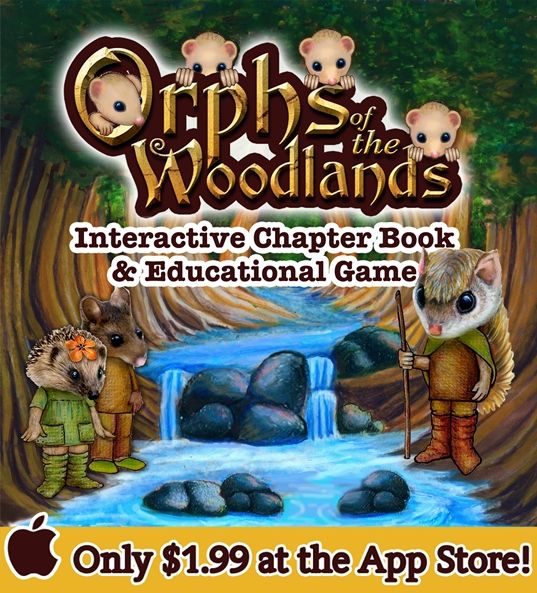
Last spring Youngest was introduced to the Orphs of the Woodlands via a computer program review. He enjoyed his time with the program, and was happy to have the opportunity to review a coordinating app produced by Star Toaster, Orphs of the Woodlands at Tangletree. 

The app is similar in some aspects to the program. but there is also some variation on the theme.

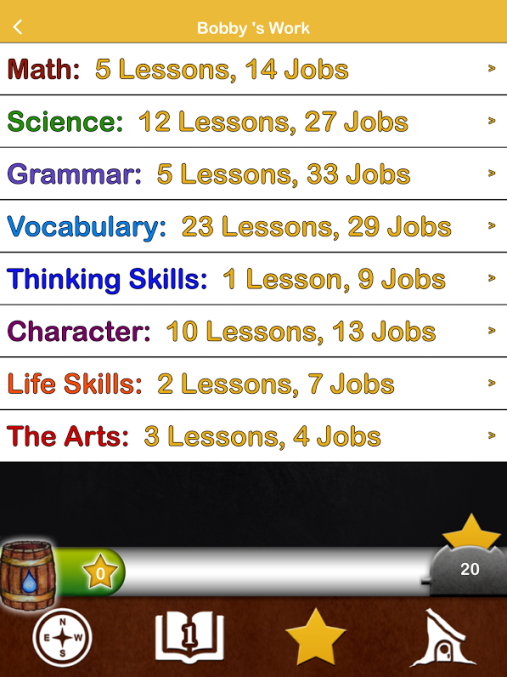
Once again the student reads an adventure story featuring the Orphs of the Woodlands, this time the journal of Abba, the Flying Squirrel. Within the text there are links to lessons on a variety of subjects as you can see on the graphic on the right.  When clicking on the words within the text it is good to know that they coordinate colors with those in the graphic to the right. Math lessons are linked with Red letters. Science is linked with Green lettering, and so on. These lessons are opportunities to learn skills in order to take and complete a variety of jobs. The stars earned when a job is finished successfully can be used to purchase supplies for the orphaned animals of Tangletree,

The story may be a little longer and more complex than the one in the computer program, a quick read for advanced readers, but a bit slower for those who are learning how to read, or working on those skills. There are 18 chapters in this particular Woodland Adventure. When I handed the ipad over to my son, he was very pleased, and read it through in fairly short order, even with the included lessons and jobs to complete.
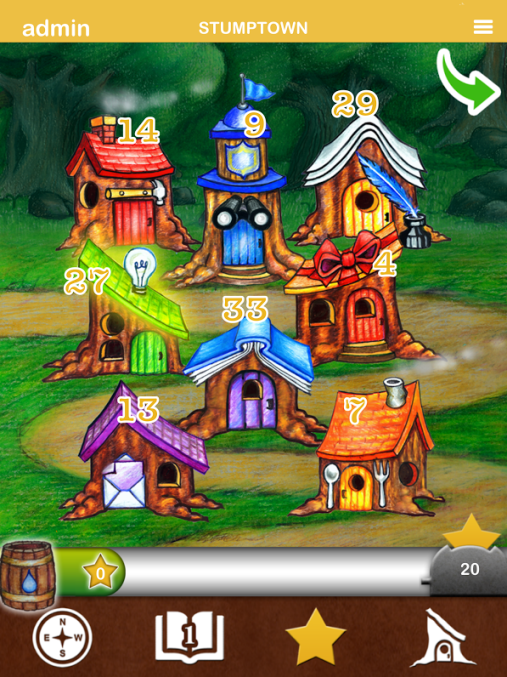
If your child ever forgets what Lessons they may have learned, and how many stars they have earned, they can figure it out by stopping by any one of the tiny houses in Stumptown (Shown in the graphic to the left-hand side). Each house shows the number of stars that can be collected through completing those Lessons and Jobs.

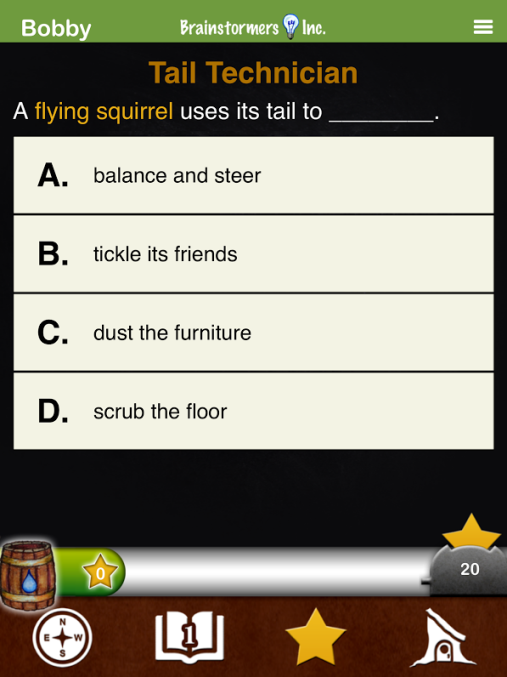
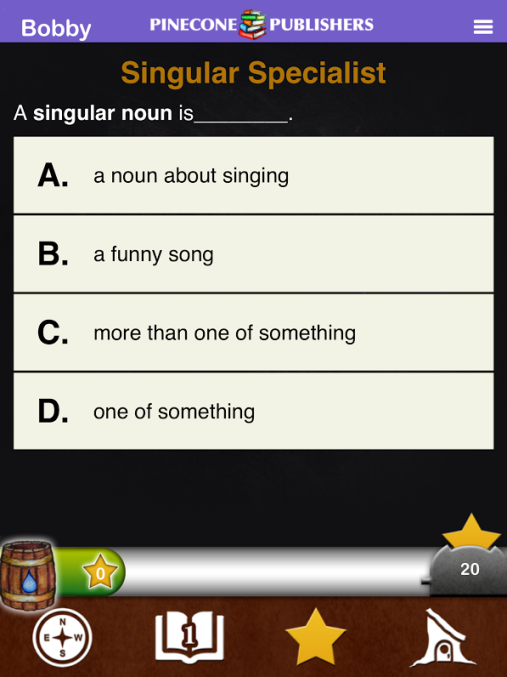
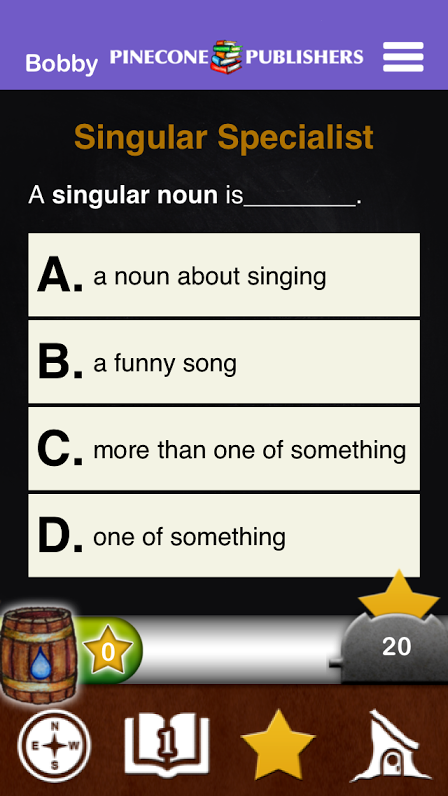
Following are screenshots of some of the Lessons, and Jobs:
  

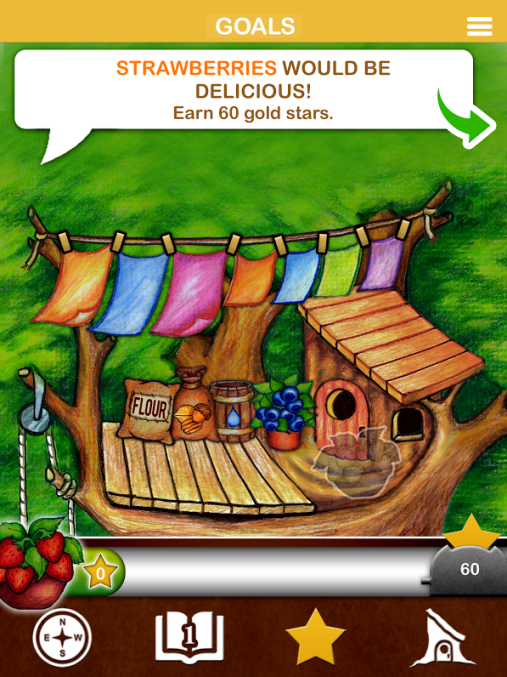
There is also information for the child, to show him his current goal: 


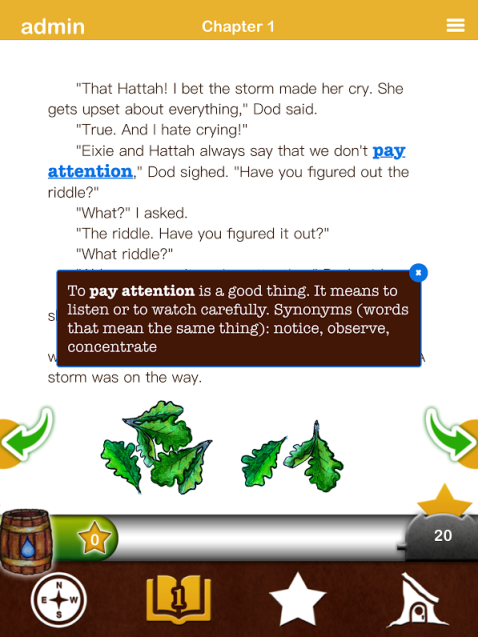
You can get a feel for the story itself with the following excerpt: 

I honestly currently have no "cons" to list for the Orphs of the Woodlands and Tangletree, other than maybe that it is hard to figure out if jobs can be attempted after failing them once. It would be nice to see that become a possibility. I haven't run into it as many times this year as last (hey! The boy is learning! Hurrah!,  but in the real world people are given 2nd chances (usually). 

Because he finished this story so fast, Youngest has been anxiously awaiting the stories that we understand will be available soon. He can't wait to read another installment (In-app purchases  are available as soon as they are published. 

Not So Nutty Nitty Gritty 
You can visit Star Toaster on their social media pages: Facebook and Twitter
Please click the banner below to visit the TOS Review Crew and see what others had to say. As always, I hope that this review was useful to you as you choose where best to spend your homeschool budget.
Blessings~

Click to read Crew Reviews
Crew Disclaimer

Saturday, November 30, 2013

The Nativity Story - Popup DELUXE Edition (App Review)

Every now and again I am offered an app for review. I have really enjoyed those apps that recreate the feel of vintage story books, with "pop-up" features and push/pull figures, especially as they are much sturdier than when little fingers are exploring them in real paper books.

Puddletap.com has produced a Nativity Story App that includes pop-up style woodcut illustrations, with tap and swipe features on virtually every page. You can get a glimpse by watching the trailer below.


The Nativity Story app allows you to read the story yourself, or have it "read to me." Please note that the story is available in English, French and Spanish. The style of the English narrator reminds me a bit of the narrator for "How the Grinch Stole Christmas..." a classic storytelling voice. Mary and Joseph and the other characters all have their own regular voices. The French and Spanish voices are all different, and I am guessing native speakers, based on my untrained ear. ;)

The story is told with poetic rhyme, which sometimes creates a bit of a "reach" from a story-telling perspective, if one is looking for a telling that follows the original text, however, the basic narrative is unchanged. Some traditional aspects that are changed a little include looking for place to stay at a "tavern," a "Theater," and the inclusion of a female innkeeper (which, while not impossible, was less likely). However, to balance that out, after going through the story book, there is an option to read the scripture from Luke. When using the iPod app, the text is rather small for reading, but on the iPad it is perfectly fine.

Some animals and an angel band add interest, with their noises and the musical instruments, and once again, the artwork is beautiful.

"Buttons" that activate the voices of the different characters make the most sense when pressed in left to right order (Good for helping to reinforce that left ---> right tracking required for reading).

My six year old enjoyed figuring out what each "button" would bring, and I enjoyed the beautiful woodcut artwork.

The retail price for the app is $3.99 for iPad and $1.99 for iPhone

Blessings~


Disclosure~ I received a free download of this app in order to leave a review. A positive review was not required, and the opinions are those of my children and my own. 

Wednesday, May 8, 2013

Literacy Soft~ McGuffey Reader App for the iPad

Ever since we have had an iPad in our home, it has been taken over by an incredible number of educational apps (we say the iPad is mine, but I think we know better...). Regardless, it's all good. :) The McGuffey Readers are a classic standby, so I was curious to see how they were treated when I was given the opportunity to review LiteracySoft's Phonics and Reading with McGuffey.

Once you have your user set up, they start at the beginning with lesson 1. I'm just going to walk you through an entire lesson, using screenshots (Mostly from lesson 1, but a few from further on). There is an "instructor" or "narrator" voice that gives direction for each screen in the lesson, and pushing the "Volume" icon repeats them, if necessary.
Screenshot of Lesson 1 Overview, which can be reached from the Table of Contents button on the home screen. Note: It *is* possible to move ahead in lessons via the Table of Contents, if there is material that has already been covered. 


Letter Sounds Screen (Lesson 1) 
Letter Sounds: Each lesson introduces a number of new sounds. In this case, the letters "short a," "hard c," "d," "n," "r," and "t."  The letter sounds are voiced as each letter is touched.

New Words: lists new words, which are sounded out, and then read as they are touched. The reader is encouraged to echo the sounding out and reading of the word (This struck me as a mix between phonics and sight reading). The narrator does mention spelling rules as they come up, but I think those must be pointed out for the younger reader to catch them.

Phonics Flashcards (Lesson 1)
Phonics Flashcards: a "quiz" page, where the reader is to touch the letter that represents the sound being spoken. Each time the answer is correct "light" is added to the a lightbulb. When all 6 lightbulbs are lit, that part of the lesson is over. This is a fast and effective drill, that creates a nice sense of accomplishment.

Phonics Blender
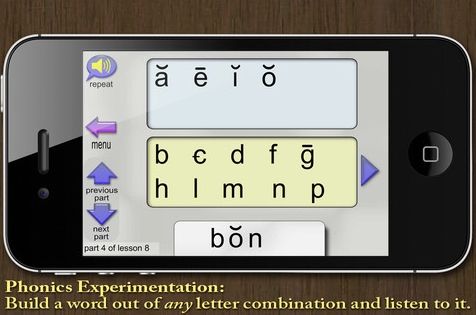
Phonics Blender~ This is actually my least favorite aspect of this app, even though my son enjoys playing here. This is a screen where the reader can build a word out of ANY letter combination. They can make real words as well as nonsense words, which is well and good. However, my issue with this is that the vowels are represented phonetically. I am finding causes confusion when working on spelling. There is nothing to distinguish WHY a "long e" is pronounced "EEE." I wish that the vowels were shown with their correct spellings "ee" as they are taught, rather than phonetically. When "ch" and "th" are taught they are represented correctly, and I just wish the vowels were as well.

Moving right along...

Lesson 13 overview with the lesson illustration
*Note~ each section of the lesson
be reached by clicking on the button on the left.
I love that flexibility! 
Lesson Illustration ~ Has a picture that coordinates with the reading practice. There is nothing to "do" on this page, other than to observe what is seen. LiteracySoft offers a free pdf download of the McGuffey Primer which corresponds directly to the app, so you do have the option to reinforce with a paper (or computer) copy if you so desire. I found this handy so that my son could see the Illustration and the Reading Practice on the same page, but I only used it AFTER going through the lesson on the iPad.


Reading Practice (Lesson 12)
Reading Practice~ A set of words are shown. I have my son try to sound them out on his own first. If he runs into trouble, then I have him touch the word he is having trouble with. The program then sounds it out for him, and reads it for him. After than, he starts over, and continues till he gets to the end. He then enjoys dragging his finger across the boxes to hear the words spoken without being sounded out.

Quiz~ is a page that quizzes the reader on the new sounds that were learned. Fairly simple screen, which shows the lesson letters. The "narrator" asks them to touch each letter by sound.

Spelling Practice
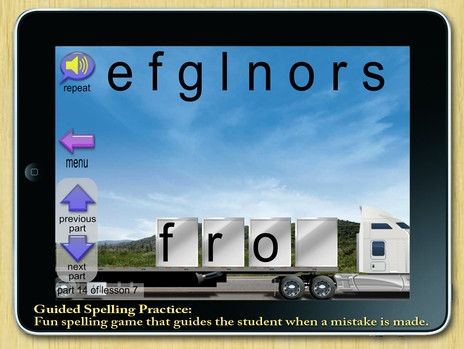
Spelling Practice~ Asks the reader to spell a particular word, and they have to drag the correct letters from the sky to the correct box on the flatbed before the truck will drive away, and a new letter will appear. This was fairly simple to start with, but now that we are getting further along, and there are more vowel sounds, youngest is finding that he has to listen VERY carefully to distinguish which one he needs to use. This is a good thing!
    Sight Word Drilling
    Sight Word Drilling~ In this last section, three words from the current (And possibly previous lessons) are shown, and one is spoken. The reader taps it, and the list of words changes immediately, and another word is spoken. The faster the words are tapped, the faster the engine runs. Accuracy counts, though, because a wrong word slows down or stops the engine. At the moment, our goal is for youngest to get through this part of the lesson in less than 100 seconds. Sometimes he zones out or gets flustered by the "timed" aspect and starts tapping random words. At that point I have to remind him to focus, and repeat the word that was said, before tapping it. When he is successful at beating the 100 second mark the first time through there is great excitement and jumping up and down, so I'd say this is a fairly effective tool.


    TOC Lesson "Jump Menu" home page
    All things considered, I am fairly happy with the way this app works, with the exception of the phonics blender~ and I'm guessing there was a valid reason for its inclusion, it just doesn't quite go with my teaching reading philosophy. The good news is that the app allows for any section to be skipped. While this is a very positive feature of the app, some students may require an adult overseeing their use to make sure that too many sections aren't skipped over... ;)

    Not So Nutty Nitty Gritty 
    • Company: LiteracySoft
    • Product: Phonics and Reading with McGuffey
    • Ages: Beginning Readers
    • Price: $19.99 for all 53 lessons (The first 10 lessons are available to download for free, so that you can check it out for yourself!) 
    Please click the banner below to visit the TOS Review Crew and see what others had to say. As always, I hope that this review was useful to you as you choose where best to spend your homeschool budget.
    Blessings~


    Photobucket

    Thursday, April 18, 2013

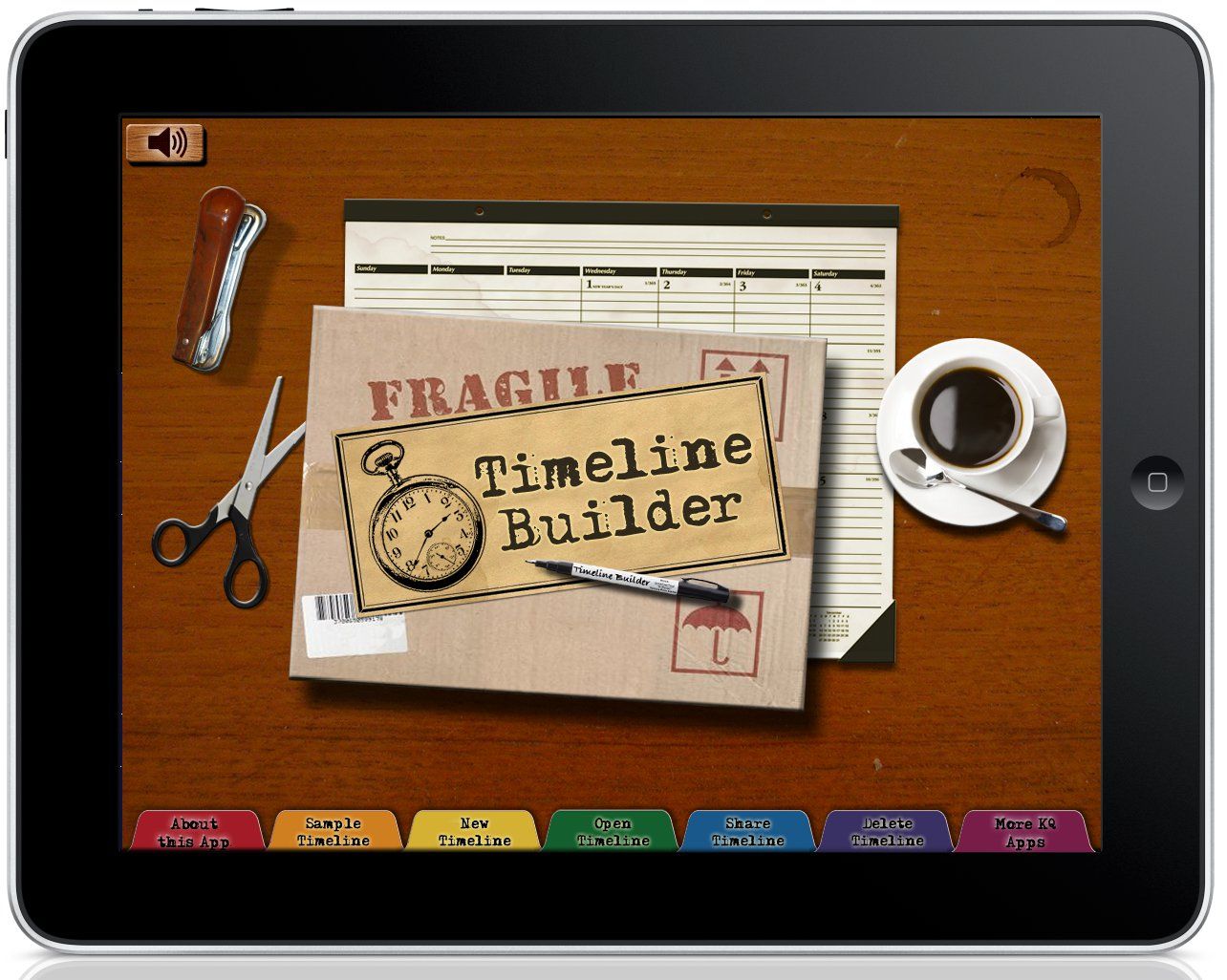
    Get your Timeline OFF the Walls and IN your hands! :)

    This next review item has been very engaging, and I can see a huge variety of ways to utilize it. "So what is it, already?" you're asking.  Well, I'm going to give you some hints... 

    First, I have to be honest and tell you that I *own* two actual timeline books. I also need to mention that I have had good intentions, but... those poor books are sad and empty for the most part. And my walls are bare (of timelines, at any rate... no index card or paper strips going up and down my stairwell or through the hall). What a traditional homeschool-mom failure! Enter Terri Johnson and the TimelineBuilder iPad App from Knowledge Quest! 
    In order to get a good look at the typical use, please *do*  take a few minutes to check out this video that Terri put together, and then I'll give you my personal input on this product. 


    How *We* Used the TimelineBuilder App

    I know that timelines are traditionally used as tools for heavy-duty history studies (And you can see an example at the link I mentioned above, as well as in the video), but I had a couple of other ideas that I wanted to try out. 

    The first timeline I built was one that I could put together rather quickly on my iPad, as I was utilizing pictures that were already on my camera roll. See... this app lets you create a timeline (With any name and description and time-frame that you want to put in), and then you can add images either from your photo files, or from any other public domain image that you find on the web. There is even a quick-link to wikipedia so that you can search whoever/whatever you want to add as an event on your timeline. I'll mention a couple of things about that in a few minutes. 

    Now that you have an idea of what the app is about, here is that timeline~ a fairly simple chronology of some of my youngest child's creative efforts~ He likes me to take pictures of various things, so I thought it would be fun to archive them a little more officially~ :) 

    Next~ we had Soooooo much fun playing with this one, and I KNOW we aren't even close to being done ~ We decided to make a timeline of a bunch of my eldest's favorite authors~ I have a ton of images for this project, just because I wanted to showcase some of the things that can be done with this app. BTW, just making this Literary timeline turned into a bit of a history and geography lesson as well, as my eldest looked up the authors in order to get dates for their first published works, as well as images for each one. Some bits and pieces were very interesting to discover! 

    What we started out with...
    after adding in a ton of authors

    This is a zoomed in screen~  you can see that
    when you zoom in the events become more
    spread out and easier to read
    Notice the circled area~ very squishy, yes?
    And say you don't care for those straight
    up-and-down lines~ Check out what you can do!
    Isn't this nifty? These are the same books 
    that were circled in the shot above. 
    I love having an "Array" of books that
    look almost like a heart, because I LOVE reading! :) 
    Well... we kept adding authors and we even ended up changing the title of the timeline, as you might notice below~
    The Literary Dromedary (Do you see it?) :)
    It's rather full, but very interesting to see what decades
    had writers who were most interesting to her. 
     The next set of pictures were from those that I emailed to myself~ the events are spaced enough for reading that I could easily print them up if I wanted to have a physical timeline to lay out (Or tape up my stairwell... :D) (My apologies for the spacing~ the photos are right next to one another when I'm typing into my blog , but when I publish it goes all wonky on me, and I haven't figured it out just yet... ) :(

    Hopefully this gives you a feel (In spite of the wonky spacing) for how nicely these would print out to putting in a notebook if you were so inclined, OR for a school portfolio or what-have you. Pretty nifty, no?


    What We Thought
    I had a few other less conventional ideas for which I would consider this app.There is the obvious idea of doing a family tree type of timeline~ that would be a fun project!

    I have also thought of making a garden timeline, with photos/dates that each flower or tree begins to bud, and then when they bloom. Nice way to organize it all, and keep a record for your future garden designs.

    A Couple of Technicalities or Tips: 


    • When grabbing pictures from Wikipedia, it is necessary to keep tapping on the picture until it is the only thing left on the page and the address is a jpg or gif-type file. THEN you can successfully copy it to your "pasteboard" to add to the timeline. 
    • Just a note that it is sometimes a little difficult to get the images for the events to resize, but keep with it, and you'll get it. This makes it possible to get rid of most "distortion" that shows up when you first paste the image in. Nice feature! 

    Goodness~ what an amazing lot of fun we can have with this app! My only concern is that I will run out of space on my iPad(which seems to be a perpetual problem of mine), and won't be able to have too many timelines going at once. Because of that, I would surely love it if this eventually turned into a program or app I could use on my MAC laptop as well, since I have a LOT more storage space there. However, for the time being, I'm pretty happy with what I can do on the iPad~ Thank you, Terri! :)

    Not So Nutty Nitty Gritty 
    Please click the banner below to visit the TOS Review Crew and see what others had to say. As always, I hope that this review was useful to you as you choose where best to spend your homeschool budget.
    Blessings~


    Photobucket

    Wednesday, March 6, 2013

    ~ Wordless Wednesday ~ Nifty Artsy App ~

     Joining in on Wordless Wednesday~ posting some fun things we created with iPhone app  AutoPainter - Mediachance (compatible with my iPad, and free at the time of posting) (very neat app! It "paints" your photo in front of your eyes!) and then "Collaged" using iPad app Nostalgio - Apalon  (homeschool moms take note... I can see using these for a number of applicaitons!).

    Enjoy! 


    Blessings~

    Followers

    LinkWithin

    Related Posts with Thumbnails